 |
Microsoft Outlook |
|||||||||||||||
| ||||||||||||||||

 | Web Site Hosting | Web Design | Broadband/Access | E-Mail Solutions | Accept Credit Cards | Hosting Support |  | |

|
||||||||
This page provides instructions for configuring Microsoft Outlook 2000 and 2003 to retrieve your account e-mail.
- From the Tools pull-down menu select the Accounts option.
- Select the Mail tab.
- Select Add and then Mail from the list provided.
- Follow the instructions provided by the wizard. Some tips are provided below:
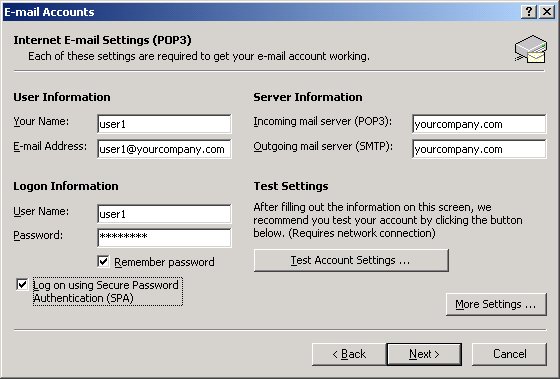
- Incoming mail (POP3 or IMAP) server
This is typically your domain name, for example yourcompany.com. - Select either POP3 or IMAP
If you are unsure which to select, we recommend you select POP. - Outgoing mail (SMTP) server
This is typically your domain name, for example yourcompany.com. - Account Name
This should be your e-mail user name, for example bob for an e-mail address of bob@yourcompany.com. - Password
This is the password you associated with the Account Name above. - Check the Log on using Secure Password Authentication (SPA) Box
- Click More Settings.
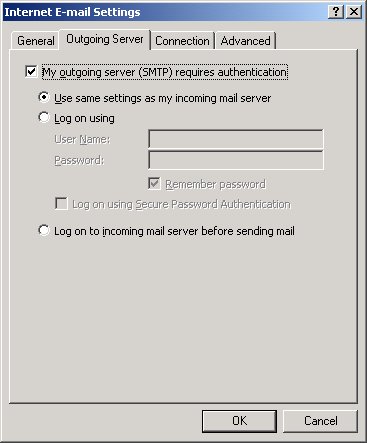
- Check the My outgoing server (SMTP) requires authentication box. Use the same settings
as your incoming mail server for SMTP-Auth.
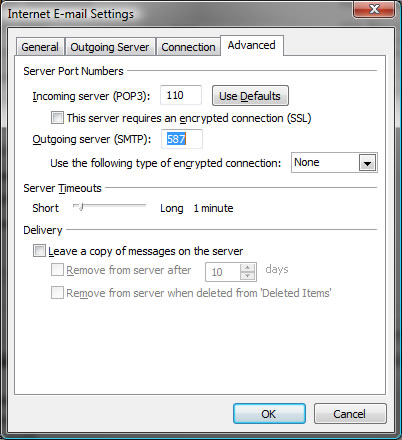
- On the Advanced tab, if you are unable to send mail you may need to change the Outgoing server (SMTP) port number from the default of 25 to 587. Many Internet providers block port 25 in an attempt to prevent infected PCs from sending virus e-mails. It will not hurt to always set this port to port 587.
Please note: the information on this page applies to ITS web hosting plans. It may or may not apply to other environments. If you are looking for a feature described here, or better support from your hosting provider, please consider hosting your site with ITS!

Copyright © 1996-2024, Integrated Technical Solutions, Inc., all rights reserved. See Terms/Legal for trademarks, copyright, and terms of use.
1555 N Naperville/Wheaton Road, Suite 107
Naperville, IL 60563
Naperville, IL 60563
phone 630.420.2550
fax 630.420.2771
fax 630.420.2771