 |
Setting Permissions |
|||||||||||||||
| ||||||||||||||||

 | Web Site Hosting | Web Design | Broadband/Access | E-Mail Solutions | Accept Credit Cards | Hosting Support |  | |

|
||||||||
Note: this page applies to old account types we no longer offer. We have left it up since it may be helpful for someone, since they get a decent amount of search traffic. All current hosting plans with a control panel use Plesk.
If you are an ITS client please contact us for assistance for your account.
The installation of a custom script often requires a special file permission; however, please note that the appropriate permissions are set automatically upon upload to your cgi-local. However, in some instances it may still be necessary to set a file or directory permission.
In instances (such as controllable anonymous FTP) whereby a file's or
directory's public read or write permissions must be changed, the File
Manager can be used. However, our recommended FTP client, BulletProof
FTP, can also be used to set permissions ("attributes").
With the current version, you can either type the chmod code or use a
set of check boxes to change the permissions. Recent versions of WSFTP
have similar options.
To change permissions, perform the following steps:
1- Open your FTP program and connect to your web site.
2- Select the file or the directory on which you want to change permissions.
3- Click your right mouse button to activate the pop up menu.
4- Select "Change attributes". A "Change attributes" window will appear.
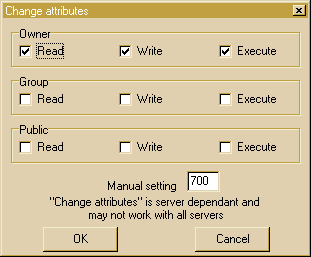
5- Select the attributes that you want to set to the file or directory. Make sure you do not remove your own read and write permissions!
6- Select OK. You have now changed the permissions.
7- You can check the permission settings by clicking the Commands>Refresh Directory menu item.
If you are using a non-current version of WSFTP, you may need to enter a SITE string to change permissions as follows:
1- Open the WSFTP program and connect to your web site.
2- Open the directory that contains the file for which you want to change permissions.
3- Click your right mouse button to activate the pop up menu.
4- Select "FTP commands" from the FTP Menu.
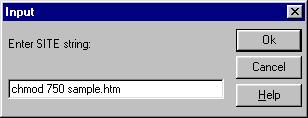
5- Enter the desired chmod command in the SITE string command field.
Example
Suppose you were preparing to enable anonymous FTP and you needed to disable public write access to a file named sample.htm. As mentioned, the File Manager can be used to accomplish this task, but for this example, the WSFTP SITE command is used.
The command to set public write access OFF is: chmod 750 <filename>
Follow the instructions above to display the SITE command field and enter the desired chmod command as shown above (chmod 750 sample.htm).
Please note: the information on this page applies to ITS web hosting plans. It may or may not apply to other environments. If you are looking for a feature described here, or better support from your hosting provider, please consider hosting your site with ITS!

Copyright © 1996-2026, Integrated Technical Solutions, Inc., all rights reserved. See Terms/Legal for trademarks, copyright, and terms of use.
Naperville, IL 60563
fax 630.420.2771